
Vector Embeddings in the Browser

Vector Embeddings, just for specialists?
Let’s say you want to build an app that assesses the similarity of content using vector embeddings. You know a little about what you’ll need: first, obviously, a way of creating vector embeddings, maybe also some retrieval augmented generation. The typical assumption is that you need expensive cloud APIs, a backend, specialized ML engineers, and Python.
You don’t need any of that.
You can start building AI apps without having to learn a new programming language or adopt an entirely new set of skills.
You don’t require high-end equipment, or powerful GPUs. You don’t need ML and data science experts. Thanks to pre-trained machine learning models, you can create an intuitive component that generates and compares vector embeddings right within your browser, on a local machine, tailored to your data. You also don’t require library installations or complex configurations for end-users. You don’t have to know Python; you can do it directly in TypeScript. And you can start immediately.
The following tutorial in creating a small-scale AI application demonstrates just how straightforward and efficient the process can be. Though our component is a very specific use case, you can apply its basic approach to operationalizing vector embeddings for all kinds of practical applications.
An app that generates, compares, and visualizes vector embeddings in your browser!
Our component takes input content, produces vector embeddings from it, assesses its parts - in our case, sentences - and provides a user-friendly visual display of the results. And you can build it right within your web browser.
In our tutorial, we will take some user input text, split it into sentences, and derive vector embeddings for each sentence using TensorFlow.js. To assess the quality of our embeddings, we will generate a similarity matrix mapping the distance between vectors as a colorful heatmap. Our component enables this by managing all the necessary state and UI logic.
Specific parts of our application
- We import all necessary dependencies: React, Material-UI components, TensorFlow.js, and D3 (for color interpolation).
- Our code defines a React functional component that generates sentence embeddings and visualizes their similarity matrix in a user interface.
- We declare various state variables using the
useStatehook, in order to manage user input, loading states, and results. - The
handleSimilarityMatrixfunction toggles the display of the similarity matrix, and calculates it when necessary. - The
handleGenerateEmbeddingfunction is responsible for starting the sentence embedding generation process. It splits the input sentences into individual sentences and triggers theembeddingGeneratorfunction. - The
calculateSimilarityMatrixis marked as a memoized function using theuseCallbackhook. It calculates the similarity matrix based on sentence embeddings. - The
embeddingGeneratoris an asynchronous function that loads the Universal Sentence Encoder model and generates sentence embeddings. - We use the
useEffecthook to render the similarity matrix as a colorful canvas whensimilarityMatrixchanges. - The component’s return statement defines the user interface, including input fields, buttons, and result displays.
- The user input section includes a text area where the user can input sentences.
- The embeddings output section displays the generated embeddings.
- We provide two buttons. One generates the embeddings, and the other shows/hides the similarity matrix.
- The code handles loading and model-loaded states, displaying loading indicators or model-loaded messages.
- The similarity matrix section displays the colorful similarity matrix as a canvas when the user chooses to show it.
Our encoder
The Universal Sentence Encoder is a pre-trained machine learning model built on the transformer architecture. It creates context-aware representations for each word in a sentence, using the attention mechanism - i.e., carefully considering the order and identity of all other words. The Encoder employs element-wise summation to combine these word representations into a fixed-length sentence vector. To normalize these vectors, the Encoder then divides them by the square root of the sentence length - to prevent shorter sentences from dominating solely due to their brevity.
The Encoder takes sentences or paragraphs of text as input, and outputs vectors that effectively capture the meaning of the text. This lets us assess vector similarity (i.e., distance) - a result you can use in a wide variety of natural language processing (NLP) tasks, including ours.
Encoder, Lite
For our application, we’ll use a scaled-down and faster ‘Lite’ variant of the full model. The Lite model maintains strong performance while demanding less computational power, making it ideal for deployment in client-side code, mobile devices, or even directly within web browsers. And because the Lite variant doesn’t require any kind of complex installation or a dedicated GPU, it’s more accessible to a broader range of users.
Why a pre-trained model
The rationale behind pre-trained models is straightforward. Most NLP projects in research and industry contexts only have access to relatively small training datasets. It’s not feasible, then, to use data-hungry deep learning models. And annotating more supervised training data is often prohibitively expensive. Here, pre-trained models can fill the data gap.
Many NLP projects employ pre-trained word embeddings like word2vec or GloVe, which transform individual words into vectors. However, recent developments have shown that, on many tasks, pre-trained sentence-level embeddings excel at capturing higher level semantics than word embeddings can. The Universal Sentence Encoder’s fixed-length vector embeddings are extremely effective for computing semantic similarity between sentences, with high scores in various semantic textual similarity benchmarks.
Though our Encoder’s sentence embeddings are pre-trained, they can also be fine-tuned for specific tasks, even when there isn’t much task-specific training data. (If we needed, we could even make the encoder more versatile, supporting multiple downstream tasks, by training it with multi-task learning.)
We’ll use TypeScript.
Our step-by-step tutorial
Import modules
import React, { FC, useState, useEffect, useCallback } from 'react';import {  Box,  Grid,  Typography,  TextField,  Paper,  Button,  CircularProgress,} from "@mui/material";
import '@tensorflow/tfjs-backend-cpu';import '@tensorflow/tfjs-backend-webgl';
import * as use from '@tensorflow-models/universal-sentence-encoder';import * as tf from '@tensorflow/tfjs-core';import { interpolateGreens } from 'd3-scale-chromatic';
State variables to manage user input, loading state, and results
We use the useState hook in a React functional component to manage user input, track loading states of machine learning models, and update the user interface with the results, including the similarity matrix visualization.
// State variables to manage user input, loading state, and results
// sentences - stores user input  const [sentences, setSentences] = useState<string>('');
// sentencesList - stores sentences split into array  const [sentencesList, setSentencesList] = useState<string[]>([]);
// embeddings - stores generated embeddings  const [embeddings, setEmbeddings] = useState<string>('');
// modelLoading - tracks model loading state  const [modelLoading, setModelLoading] = useState(false);
// modelComputing - tracks model computing state  const [modelComputing, setModelComputing] = useState(false);
// showSimilarityMatrix - controls matrix visibility  const [showSimilarityMatrix, setShowSimilarityMatrix] = useState(false);
// embeddingModel - stores sentence embeddings  const [embeddingModel, setEmbeddingModel] = useState<tf.Tensor2D>(tf.tensor2d([[1, 2], [3, 4]]));
// canvasSize - size of canvas for matrix  const [canvasSize, setCanvasSize] = useState(0);
// similarityMatrix - stores similarity matrix  const [similarityMatrix, setSimilarityMatrix] = useState<number[][] | null>(null);
Function to toggle the display of the similarity matrix
The handleSimilarityMatrix function is called in response to user input, toggling the display of a UI similarity matrix - by changing the showSimilarityMatrix state variable. If the matrix was previously shown, the handleSimilarityMatrix hides it by setting it to null. If the matrix wasn’t shown, the handleSimilarityMatrix calculates the matrix and sets it to display in the UI.
// Toggles display of similarity matrix  const handleSimilarityMatrix = () => {    // Toggle showSimilarityMatrix state    setShowSimilarityMatrix(!showSimilarityMatrix);
    // If showing matrix, clear it    if (showSimilarityMatrix) {      setSimilarityMatrix(null);
    // Else calculate and set matrix    } else {      const calculatedMatrix = calculateSimilarityMatrix(embeddingModel, sentencesList);      setSimilarityMatrix(calculatedMatrix);    }  };
Function to generate sentence embeddings and populate state
The handleGenerateEmbedding function, called when a user clicks the “Generate Embedding” button, initiates the process of generating sentence embeddings. It sets the modelComputing state variable to true to indicate that the model is working, splits the user’s input into individual sentences, updates the sentencesList state variable with these sentences, and then calls the embeddingGenerator function to start generating embeddings based on the individual sentences.
// Generate embeddings for input sentences  const handleGenerateEmbedding = async () => {    // Set model as computing    setModelComputing(true);
    // Split input into individual sentences    const individualSentences = sentences.split('.').filter(sentence => sentence.trim() !== '');
    // Save individual sentences to state    setSentencesList(individualSentences);
    // Generate embeddings    await embeddingGenerator(individualSentences);  };
Function to calculate the similarity matrix for sentence embeddings
The calculateSimilarityMatrix function computes a similarity matrix for a set of sentences by comparing the embeddings of each sentence with all other sentence embeddings. The matrix contains similarity scores for all possible sentence pairs. You can use it to perform further visualization and analysis.
This function is memoized using the useCallback hook, which ensures that its behavior will remain consistent across renders unless its dependencies change.
 // Calculates similarity matrix for sentence embeddings  const calculateSimilarityMatrix = useCallback(
    // Embeddings and sentences arrays    (embeddings: tf.Tensor2D, sentences: string[]) => {
      // Matrix to store scores      const matrix = [];
      // Loop through each sentence      for (let i = 0; i < sentences.length; i++) {
        // Row to store scores for sentence i        const row = [];
        // Loop through each other sentence        for (let j = 0; j < sentences.length; j++) {
          // Get embeddings for sentences          const sentenceI = tf.slice(embeddings, [i, 0], [1]);          const sentenceJ = tf.slice(embeddings, [j, 0], [1]);
          const sentenceITranspose = false;          const sentenceJTranspose = true;
          // Calculate similarity score          const score = tf.matMul(sentenceI, sentenceJ, sentenceITranspose, sentenceJTranspose).dataSync();
          // Add score to row          row.push(score[0]);        }
        // Add row to matrix        matrix.push(row);      }
      // Return final matrix      return matrix;    },    []  );
Function to generate sentence embeddings using the Universal Sentence Encoder
The embeddingGenerator function is called when the user clicks a “Generate Embedding” button. It loads the Universal Sentence Encoder model, generates sentence embeddings for a list of sentences, and updates the component’s state with the results. It also handles potential errors.
  // Generate embeddings using Universal Sentence Encoder (Cer., et al., 2018)  const embeddingGenerator = useCallback(async (sentencesList: string[]) => {
    // Only run if model is not already loading    if (!modelLoading) {      try {
        // Set model as loading        setModelLoading(true);
        // Load model        const model = await use.load();
        // Array to store embeddings        const sentenceEmbeddingArray: number[][] = [];
        // Generate embeddings        const embeddings = await model.embed(sentencesList);
         // Process each sentence        for (let i = 0; i < sentencesList.length; i++) {
          // Get embedding for sentence          const sentenceI = tf.slice(embeddings, [i, 0], [1]);
          // Add to array          sentenceEmbeddingArray.push(Array.from(sentenceI.dataSync()));        }
        // Update embeddings state        setEmbeddings(JSON.stringify(sentenceEmbeddingArray));
        // Update model state        setEmbeddingModel(embeddings);
        // Reset loading states        setModelLoading(false);        setModelComputing(false);      } catch (error) {        console.error('Error loading model or generating embeddings:', error);
        // Handle errors        setModelLoading(false);        setModelComputing(false);      }    }  }, [modelLoading]);
useEffect hook to render the similarity matrix as a colorful canvas
useEffect is triggered when the similarityMatrix or canvasSize changes. useEffect draws a similarity matrix on an HTML canvas element. The matrix is represented as a grid of colored cells, with each color (hue) determined by the similarity value among sentences. The resulting visualization is a dynamic part of the user interface.
// Render similarity matrix as colored canvas  useEffect(() => {
    // If matrix exists    if (similarityMatrix) {
      // Get canvas element      const canvas = document.querySelector('#similarity-matrix') as HTMLCanvasElement;
      // Set fixed canvas size      setCanvasSize(250);
      // Set canvas dimensions      canvas.width = canvasSize;      canvas.height = canvasSize;
      // Get canvas context      const ctx = canvas.getContext('2d');
      // If context available      if (ctx) {
        // Calculate cell size        const cellSize = canvasSize / similarityMatrix.length;
        // Loop through matrix        for (let i = 0; i < similarityMatrix.length; i++) {          for (let j = 0; j < similarityMatrix[i].length; j++) {
            // Set cell color based on value            ctx.fillStyle = interpolateGreens(similarityMatrix[i][j]);
            // Draw cell            ctx.fillRect(j * cellSize, i * cellSize, cellSize, cellSize);          }        }      }    }  }, [similarityMatrix, canvasSize]);
User Input Section
This code represents UI fields where users can input multiple sentences. It includes a label, a multiline text input field, and React state management to control and update the input, storing user-entered sentences in the sentences state variable for further processing in the component.
{/* User Input Section */}      <Grid item md={6}>
        // Heading        <Typography variant="h2" gutterBottom>Encode Sentences</Typography>
        // Multiline text input        <TextField          id="sentencesInput"          label="Multiline"          multiline          fullWidth          rows={6}          value={sentences}          onChange={(e) => setSentences(e.target.value)}        />      </Grid>
Embeddings Output Section
The UI embeddings output section displays the embeddings stored in the embeddings state variable, including a label, and a multiline text output field. React state management lets you control and update the displayed content.
      {/* Embeddings Output Section */}      <Grid item md={6}>
        // Heading        <Typography variant="h2" gutterBottom>Embeddings</Typography>
        // Multiline text field to display embeddings        <TextField          id="embeddingOutput"          label="Multiline"          multiline          fullWidth          rows={6}          value={embeddings}          variant="filled"        />      </Grid>
Generate Embedding Button
The following code represents a raised, solid button in the UI that triggers the handleGenerateEmbedding function to initiate the embedding generation process. The generate embedding button is initially disabled if there are no input sentences (!sentences) or if the model is currently loading (modelLoading).
{/* Generate Embedding Button */} <Grid item xs={6}> <Button variant="contained" id='generate-embedding' onClick={handleGenerateEmbedding} disabled={!sentences || modelLoading} > Generate Embedding </Button> </Grid>Model Indicator
This code deploys the values of the modelComputing and modelLoading state variables to control what’s displayed in the user interface. If modelComputing and modelLoading are true, a loading indicator is displayed. If modelLoading is false, then the model is already loaded and we display a message indicating this. This conditional rendering shows the user either a loading indicator or a model loaded message based on the status of model loading and computing.
      {/* Display model loading or loaded message */}      {modelComputing ? (        modelLoading ? (
          // Show loading indicator          <Grid item xs={12}>            <Box>              <CircularProgress />              <Typography variant="body1">Loading the model...</Typography>            </Box>          </Grid>        ) : (
          // Show model loaded message          <Grid container>            <Grid item xs={12}>              <Box>                <Typography variant="body1">Model Loaded</Typography>              </Box>            </Grid>          </Grid>
        )      ) : null}
Similarity Matrix
The following code displays the similarity matrix in the user interface if the showSimilarityMatrix state variable is true. This section of the UI includes a title, “Similarity Matrix,” and a canvas element for rendering the matrix. If false, the similarity matrix is hidden.
{/* Similarity Matrix Section  */}      {showSimilarityMatrix ? (
        <Grid item xs={12}>
          <Paper elevation={3}>
            <Typography variant="h3">            Similarity Matrix            </Typography>
            <canvas            id="similarity-matrix"            width={canvasSize}            height={canvasSize}            style={{ width: '100%', height: '100%' }}>            </canvas>
          </Paper>
        </Grid>
      ) : null}    </>  );};
The test drive: functionality & embedding quality
Before shipping, we should test two things: functionality, and the quality of our model’s vector embeddings.
Functionality is easy. We just run and test it. Checking embedding quality is a bit more complex. We are dealing with arrays of 512 elements. How do we gauge their effectiveness?
The similarity matrix shows this. We use the dot product between vectors for each pair of sentences to measure their proximity or dissimilarity. To illustrate this, let’s take two random pages from Wikipedia, each containing different paragraphs. These two pages will provide us with a total of seven sentences for comparison.
Paragraph 1 input
“The quick brown fox jumps over the lazy dog” is an English-language pangram – a sentence that contains all the letters of the alphabet at least once. The phrase is commonly used for touch-typing practice, testing typewriters and computer keyboards, displaying examples of fonts, and other applications involving text where the use of all letters in the alphabet is desired.
Paragraph 2 input
The Los Angeles Herald or the Evening Herald was a newspaper published in Los Angeles in the late 19th and early 20th centuries. Founded in 1873 by Charles A. Storke, the newspaper was acquired by William Randolph Hearst in 1931. It merged with the Los Angeles Express and became an evening newspaper known as the Los Angeles Herald-Express. A 1962 combination with Hearst’s morning Los Angeles Examiner resulted in its final incarnation as the evening Los Angeles Herald-Examiner.
When we input these sentences to our model and generate the similarity matrix, we can see clear patterns.
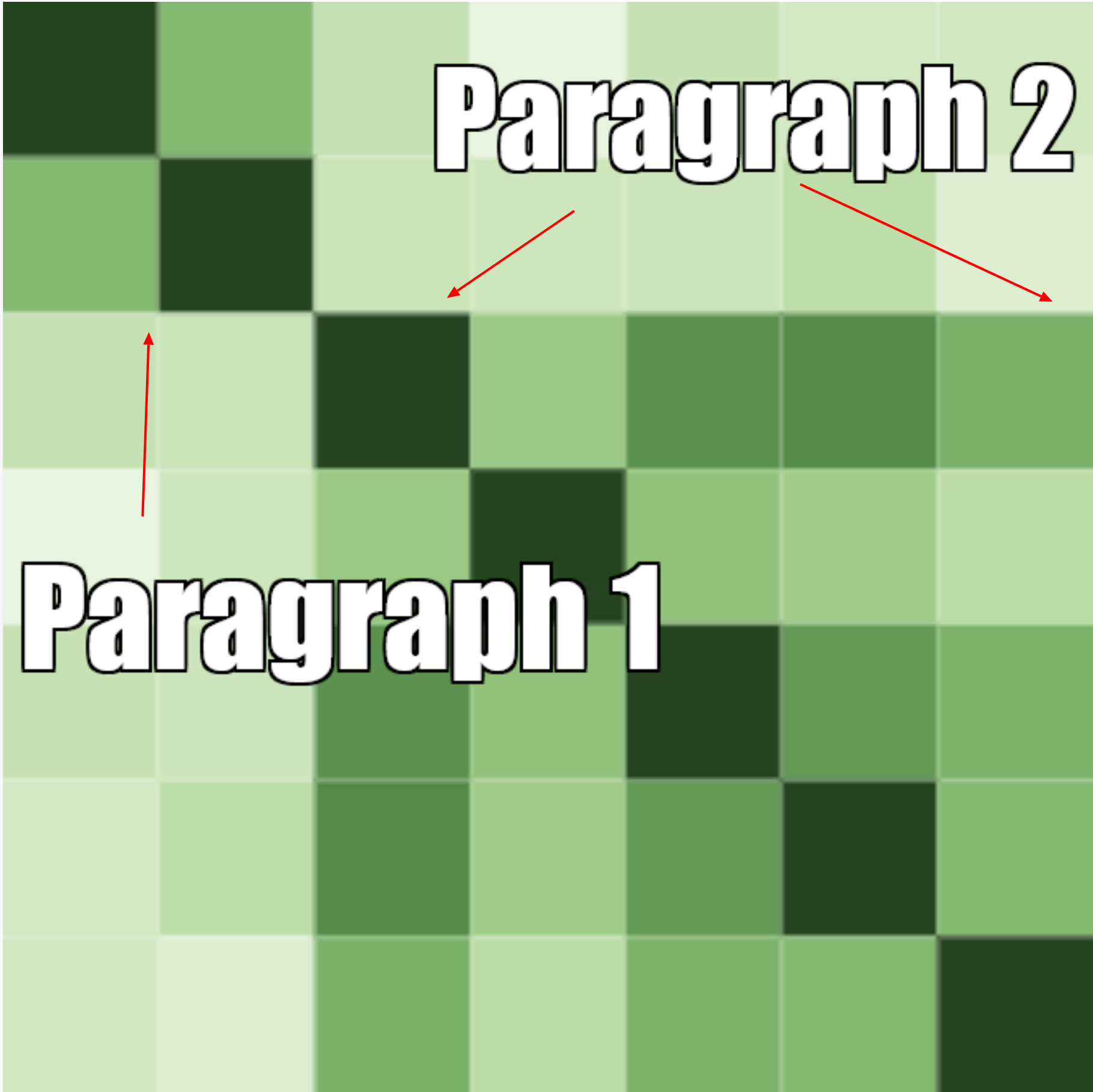 (Note: the 7x7 matrix represents seven sentences; Paragraph 2’s second sentence breaks at the “A.” of “Charles A. Storke.” The third sentence begins with “Storke.”)
Our similarity matrix uses color hue to illustrate that same-paragraph sentence pairs are more similar (darker green) than different-paragraph sentence pairs (lighter green). The darker the hue of green, the more similar the vectors representing the sentences are - i.e., the closer they are in semantic meaning. For example, pairing Paragraph 1’s first sentence (“The quick brown fox…”) and second sentence (“The phrase is commonly…”) displays as medium green squares - [1,2] and [2,1]. So does pairing Paragraph 2’s first (“The Los Angeles Herald…”) and second (“Founded in 1873…”) - [3,4] and [4,3]. The darkest green squares represent the dot product values of identical pairs - [1,1], [2,2] [3,3], and so on.
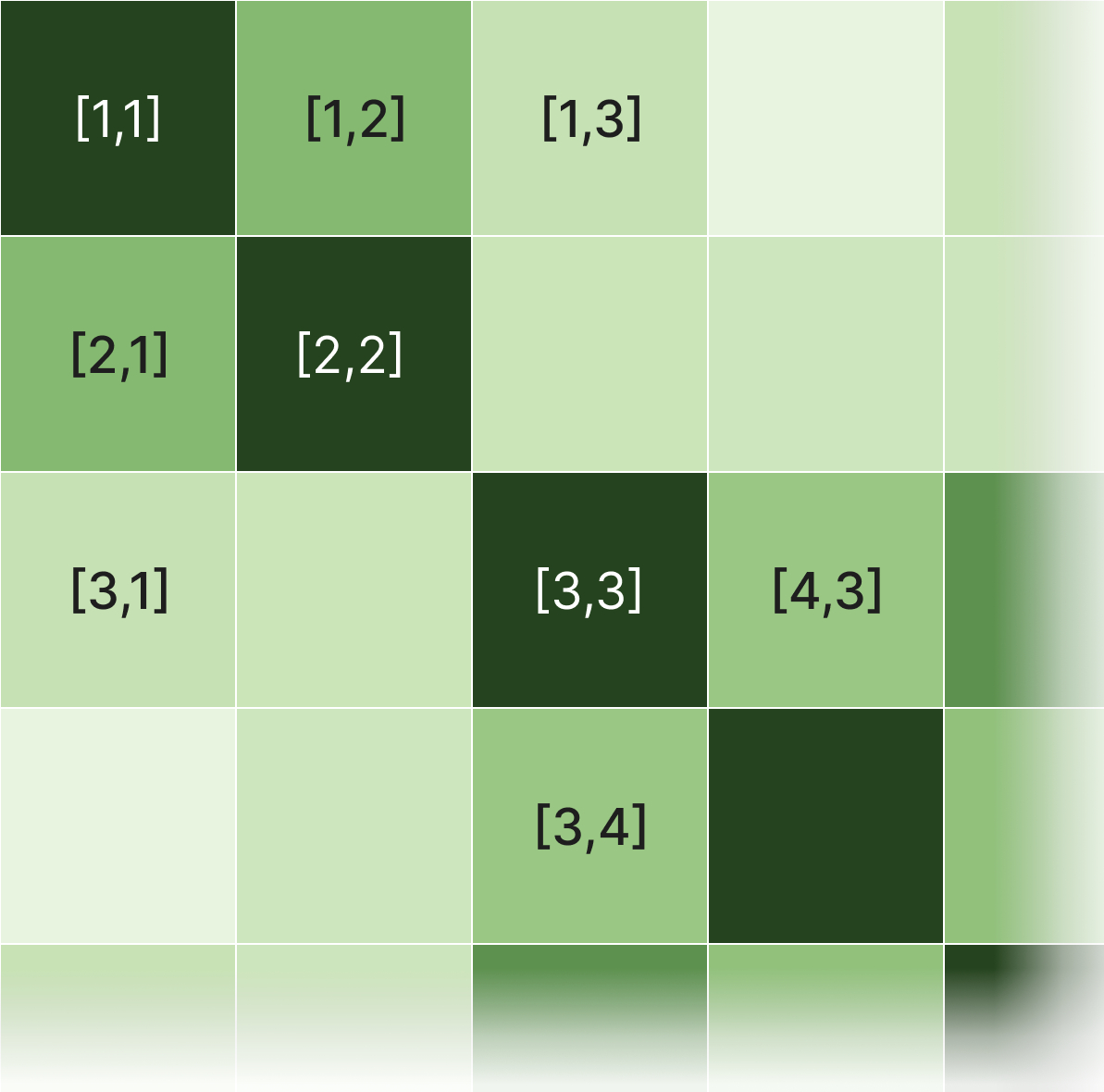
As a result, each paragraph’s same-paragraph sentence pairs form their own notably darker regions within the larger matrix above. Conversely, different-paragraph sentence pairs are less similar, and therefore display as lighter green squares. For example, pairings of Paragraph 1’s first sentence [1] and Paragraph 2’s first sentence [3] are distinctively lighter green (i.e., more distant in meaning) - [1,3] and [3,1], and lie outside our two same-paragraph sentence pair regions.
A real-world-ready semantic search application
And that’s it!
You can now build our low cost, intuitive, ready-to-deploy, in-browser vector embedding generator and visualizer in your own browser, and use it for your own real-world applications.
This is just one example of the kind of AI apps any developer can build, using pre-trained models configured with TypeScript, and without any cloud models, expensive hardware, or specialized engineering knowledge.